


Your website might look perfect, but if it loads slowly or breaks on mobile, users leave within seconds. This is exactly why factors like page speed impact and mobile usability directly affect your rankings. Most people run Google Lighthouse, see a low score, and then get stuck. They don’t know what to fix or where to start.
That’s the real problem.
This guide fixes that. You won’t just learn what Lighthouse is. You’ll understand what actually matters, what to ignore, and what to fix first. By the end, you’ll have a clear action plan instead of guessing.
What Is Google Lighthouse Tool (Simple Explanation)
Google Lighthouse is a free tool by Google that checks your website quality. It runs automated tests and gives you a report with scores and issues that affect speed, SEO, and user experience.
But here’s what most people miss.
Lighthouse is not just a scoring tool. It’s a diagnostic tool. It shows where your site is slowing down and what is causing it. That’s why developers, SEOs, and even business owners use it to improve performance.
What Google Lighthouse Actually Checks (And Why It Matters)
Lighthouse breaks your website into four main areas. Each one connects directly to how users experience your site.
| Category | What It Checks | Why It Matters |
|---|---|---|
| Performance | Page speed and loading time | Slow sites lose visitors and rankings |
| Accessibility | Usability for all users | Helps reach more people and improves UX |
| Best Practices | Security and coding quality | Prevents errors and trust issues |
| SEO | Basic search optimization | Helps search engines understand your site |
Out of all these, performance matters the most first. If your site is slow, nothing else really helps because users leave before interacting. Slow loading often increases bounce, which can indirectly affect engagement signals like user exit behavior.
That’s why the next section matters.
Why Your Lighthouse Score Is Low (Most Common Reasons)
Most websites fail for the same reasons. Once you understand them, fixing your score becomes much easier.
The first issue is large images. For example, a homepage hero image that is 2MB can delay loading by several seconds.
Another major problem is heavy JavaScript. If scripts load before your content, your page appears blank even though it is technically loading.
Slow hosting is another hidden issue. Even a well-designed site feels slow if the server response time is poor. Technical issues like these are usually uncovered during a proper technical SEO audit.
Finally, layout shifts happen when elements move while loading. This usually happens when image sizes or ads are not properly defined.
Now that you know the causes, the next step is knowing what to fix first.
Fix Your Lighthouse Score Fast (Priority Order)
If your score is low, don’t try to fix everything at once. Follow this order.
-
Fix Largest Contentful Paint
Focus on your main visible content. Usually this is a large image or banner loading too slowly. -
Fix Cumulative Layout Shift
Stop elements from jumping around. Set proper width and height for images and avoid late loading elements. -
Reduce JavaScript Blocking
Delay or remove unnecessary scripts. Too many scripts block your page from becoming interactive. -
Remove Unused CSS and Code
Clean up extra code that your site does not need. This reduces load time quickly.
This simple order saves time and gives faster results.
What Is a Good Lighthouse Score (And What You Can Ignore)
Many beginners think they need a perfect score. That’s not true.
A score above 90 is strong, but even 70 to 90 can perform well if key issues are fixed.
More important than the score is what is causing the score.
Some warnings in Lighthouse look serious but have little real impact. For example:
-
Minor accessibility suggestions
-
Low impact diagnostics
Focus on speed, stability, and user experience first. These elements also connect with how Google evaluates on page signals. Not perfection.
How to Use Google Lighthouse (Step by Step)
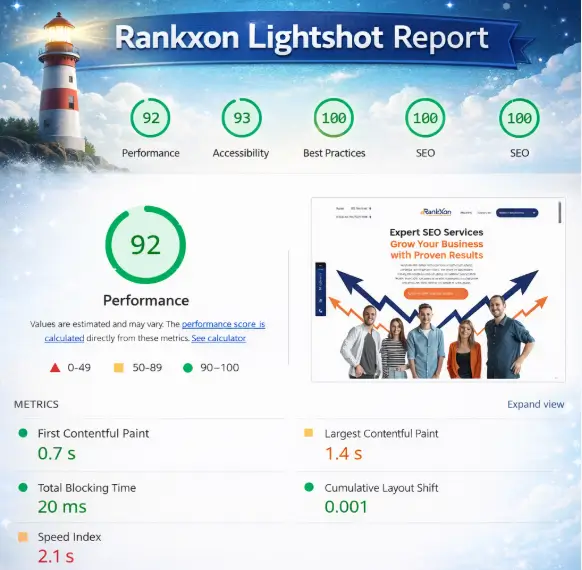
Using Lighthouse is simple.
Open your website in Chrome. Right click and select inspect. Then go to the Lighthouse tab and click generate report.
You can also use the Chrome extension if you want a quicker option.
Within seconds, you’ll get a full report. But running the test is the easy part. Understanding it is where most people struggle.
How to Read a Lighthouse Report (Without Confusion)
The report may look complex, but it follows a simple pattern.
At the top, you see your scores. Below that, you see opportunities and diagnostics.
Focus on opportunities first. These are high impact fixes.
For example:
-
“Properly size images” means your images are too large
-
“Eliminate render blocking resources” means scripts are delaying content
Ignore smaller warnings at the start. Fixing a few major issues can improve your score quickly.
How to Improve Your Lighthouse Score (Action Plan)
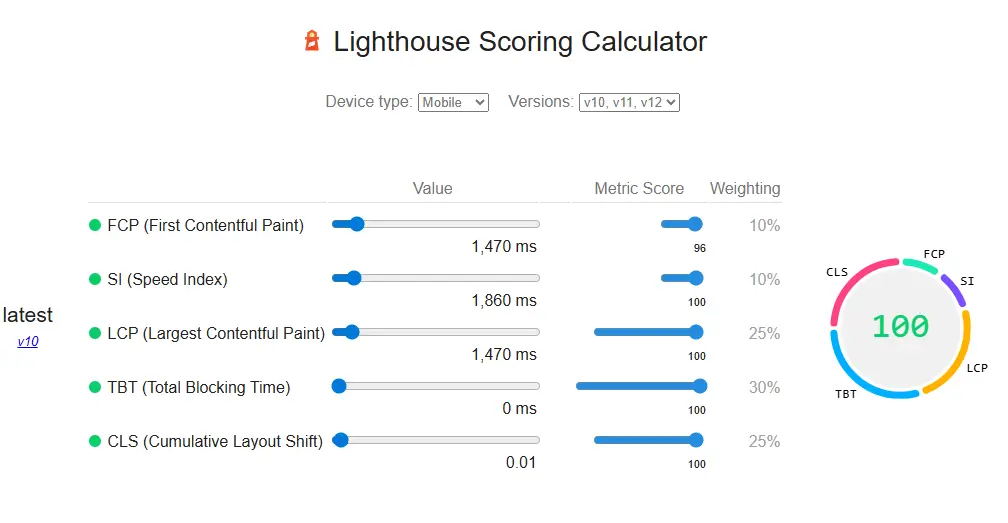
Now let’s connect everything into action.
Fix Largest Contentful Paint
If your LCP is slow, your main content is loading late. This usually happens because:
-
Your hero image is too large
-
Your server is slow
Compress images and improve hosting to fix this. Server response and secure delivery also depend on proper https implementation.
Fix Cumulative Layout Shift
If your page jumps while loading, users get frustrated.
This happens when:
-
Images don’t have fixed dimensions
-
Elements load late
Set proper sizes and avoid layout changes.
Reduce Total Blocking Time
If your site feels stuck while loading, scripts are blocking it.
Remove unused scripts and delay non essential ones.
Optimize Images and Code
Compress images, use modern formats, and remove unused code. These small changes often give big improvements.
Fix Your Score in 15 Minutes (Quick Wins)
If you want fast results, start here:
-
Compress large images
-
Enable caching
-
Remove unused plugins
-
Use a faster hosting plan
These quick fixes often improve your score without deep technical work.
Lighthouse vs PageSpeed Insights (Which One Should You Use)
Many users get confused here.
Lighthouse gives lab data. It tests your site in a controlled environment.
PageSpeed Insights shows real user data along with lab data.
Use Lighthouse to find problems. Use PageSpeed Insights to confirm how real users experience your site.
If you want deeper analysis, tools like GTmetrix can also help.
Simple Lighthouse Workflow (What to Do Every Time)
Instead of guessing, follow this process:
-
Run Lighthouse test
-
Identify red issues
-
Fix top 2 problems
-
Run test again
-
Check real user data
This keeps things simple and avoids overwhelm.
Real Example Improving a Lighthouse Score
Let’s make this real.
A site had:
-
LCP: 3.8 seconds
-
Score: 45
-
Main issue: 2MB hero image
After compressing the image and improving server response:
-
LCP dropped to 1.9 seconds
-
Score increased to 88
The site loaded faster, users stayed longer, and engagement improved.
Common Lighthouse Mistakes (Avoid These)
Many people waste time because of these mistakes:
-
Running the test once and trusting it completely
-
Only testing desktop and ignoring mobile
-
Chasing a perfect 100 score
-
Ignoring real user data
Avoid these and focus on real improvements.
Does Lighthouse Affect SEO Rankings (Truth Most Miss)
Lighthouse itself is not a ranking factor.
But what it measures is important. It focuses on Core Web Vitals, which are part of Google’s ranking system.
That means improving your Lighthouse results can improve your SEO indirectly.
Better speed leads to better user experience. That leads to better rankings.
Is Google Lighthouse Free and Built Into Chrome
Yes, it is completely free.
It is built into Chrome DevTools, so you don’t need to install anything extra.
You can run tests anytime without setup.
When You Should Not Rely Only on Lighthouse
Lighthouse uses lab data. That means it doesn’t always reflect real user conditions.
For example, your score might look good, but users on slow networks may still struggle.
That’s why you should always combine it with real data tools.
Best Alternatives to Google Lighthouse
Sometimes you need more insight.
PageSpeed Insights shows real user data. GTmetrix gives detailed performance reports.
Using multiple tools gives a clearer picture of your website performance.
When to Fix It Yourself vs Hire an Expert
If your issues are simple, like images or plugins, you can fix them yourself.
But if your site has heavy scripts, server issues, or complex errors, it’s better to get expert help.A structured approach through professional SEO services can prevent trial and error.
Knowing this saves time and avoids mistakes.
FAQs
How do I use Google Lighthouse
Open your site in Chrome, right click, and select inspect. Go to the Lighthouse tab and click generate report. It takes a few seconds and shows clear results. You do not need coding skills to run your first test.
How much does Google Lighthouse cost
Google Lighthouse is completely free to use. You can run unlimited tests without paying anything. There are no hidden charges, which makes it ideal for beginners, small businesses, and SEO professionals who want quick performance insights.
Is Lighthouse built into Chrome
Yes, Lighthouse is already built into Chrome DevTools. You do not need to install anything extra. Just open inspect and you can access it instantly. This makes it easy to test any website anytime without setup.
What is a good Lighthouse score
A score above 90 is strong, but you do not need perfection. Even 70 to 90 can perform well if key issues are fixed. Focus on speed and user experience instead of chasing a perfect score that may not impact real results.
Why is my Lighthouse score low
Your score is usually low because of large images, slow hosting, or too much JavaScript. These issues delay page loading and affect user experience. Fixing these core problems often improves your score quickly without complex changes.
Does Lighthouse affect SEO rankings
Lighthouse itself is not a ranking factor, but it measures things that impact SEO. Improving speed and user experience helps your rankings over time. So while it is indirect, fixing Lighthouse issues can still boost your SEO performance.
Should I fix Lighthouse issues myself or hire an expert
If the issues are simple, like image optimization, you can fix them yourself. But if problems involve code, scripts, or server speed, hiring an expert saves time and prevents mistakes that could hurt your website performance.
Conclusion (What You Should Do Next)
Now you understand what Google Lighthouse is and how to actually use it.
Start by running a report. Focus on the biggest issues first, not everything at once. If you want a complete breakdown of your site, start with a detailed site audit report.
Fix images, scripts, and server speed. Then test again.
Don’t chase perfect scores. Focus on real improvements.
Because in the end, a faster site doesn’t just score better. It performs better, ranks better, and converts better.
