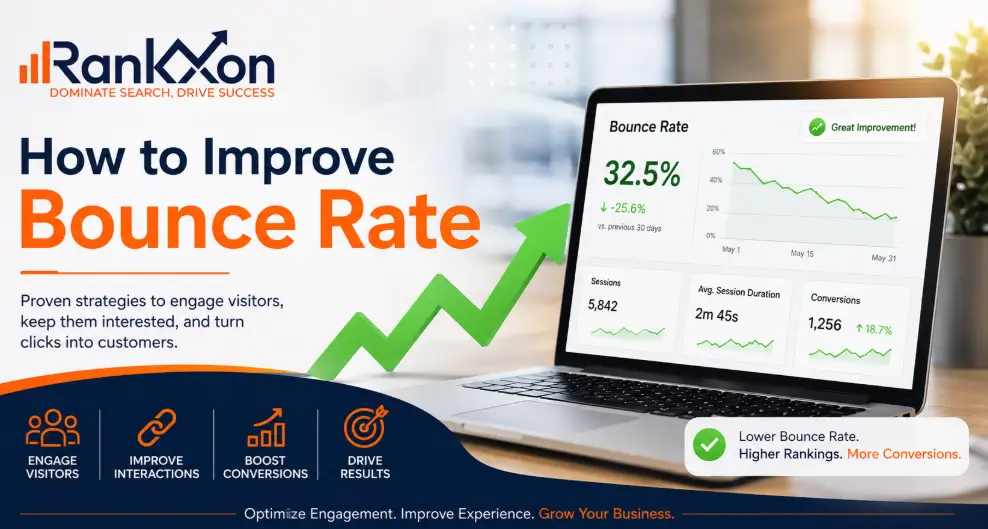
You open Google Analytics, scroll to the bounce rate column, and see a number that makes your stomach drop. Maybe it’s 72%. Maybe it’s 85%. Either way, it means the same thing: most people who land on your site leave without clicking a single other page.
The frustrating part is that most advice on fixing bounce rate sounds like the same recycled checklist. Improve page speed. Write better content. Add internal links. But none of it tells you why your visitors are leaving or which fix will actually move the number for your specific site.
This guide takes a different approach. We start by diagnosing the real causes, because a high bounce rate from paid traffic is a completely different problem than a high bounce rate from organic search. Then we walk through 10 UX-driven fixes that target those root causes directly. Whether you run a content blog, a lead-generation landing page, or an ecommerce store, you’ll leave with a practical action plan.
One thing to keep in mind before we start: a high bounce rate is not always a crisis. Context matters more than the raw number. We’ll get to that shortly. A strong site structure also helps visitors discover related pages naturally. For websites struggling with engagement signals, improving overall search visibility often starts with a stronger technical SEO foundation.
What Is Bounce Rate?
Bounce rate is the percentage of sessions where a visitor lands on a page and leaves without any meaningful engagement. It measures how often your site fails to spark a second interaction.
The precise definition depends on which version of Google Analytics you’re using, and that distinction matters more than most people realise.
The Bounce Rate Formula
The calculation is straightforward:
| Bounce Rate Formula
Bounce Rate = (Number of single-page sessions ÷ Total sessions) x 100 Example: 400 unengaged sessions out of 1,000 total = 40% bounce rate. |
If your site had 5,000 sessions last month and 2,750 of those visitors left without engaging further, your bounce rate is 55%. Simple enough. The harder question is whether 55% is a problem, and the answer depends on factors we’ll cover in the next section.
Bounce Rate in GA4 vs. Universal Analytics
This is one of the most common points of confusion, and it trips up even experienced marketers.
In the old Universal Analytics (UA), a bounce was counted any time a visitor viewed exactly one page before leaving. That included people who spent 10 minutes reading a detailed article then closed the tab. By that definition, a thoughtful reader who got exactly what they needed counted as a failure.
GA4 changed this completely. In GA4, a session is only counted as a bounce if it meets all three of the following conditions:
- The session lasted under 10 seconds
- No conversion events were triggered
- The visitor viewed no additional pages or screens
This means GA4’s bounce rate is an engagement-based metric. A visitor who reads your blog post for three minutes and then leaves is NOT a bounce in GA4, even if they only visited one page. That’s a much more accurate picture of whether your content is doing its job.
| Practical Implication
If you recently migrated from Universal Analytics to GA4 and your bounce rate looks lower than it used to, that’s partly why. The measurement method changed, not just your site. Don’t compare the two numbers directly. |
Bounce Rate vs. Exit Rate: A Common Mix-Up
These two metrics look similar in reports but measure different things. Mixing them up leads to the wrong diagnosis.
| Metric | What It Measures | When It Fires |
| Bounce Rate | Percentage of unengaged single-page sessions | Visitor lands and leaves with no engagement |
| Exit Rate | Percentage of sessions that ended on a specific page | Visitor leaves from that page, regardless of prior activity |
Here’s the difference in practice. A visitor lands on your homepage, clicks to a product page, reads it, then closes the browser. That session is not a bounce, because they engaged with multiple pages. But it does add to the exit rate of the product page, because that’s where the session ended.
Exit rate helps you find where people leave your site. Bounce rate tells you whether people engage at all. Both matter, but for different reasons and different fixes.
What Is a Good Bounce Rate?
There’s no single answer that applies to every site. A 70% bounce rate might be perfectly healthy for a news blog and a serious warning sign for a SaaS landing page. The benchmark that matters is the one that matches your industry, page type, and traffic source.
That said, industry data gives us a useful starting point.
Bounce Rate Benchmarks by Industry
| Industry / Page Type | Typical Bounce Rate Range | What It Means |
| Ecommerce (product pages) | 30% to 45% | Higher means shoppers aren’t exploring |
| B2B / Lead generation | 35% to 55% | Visitors should be checking multiple pages |
| SaaS / Software | 40% to 55% | Feature pages need to connect to each other |
| Blogs and editorial content | 65% to 80% | Readers often find what they need and leave |
| News and media sites | 65% to 85% | Normal due to single-article entry behaviour |
| Landing pages (PPC) | 60% to 90% | Depends heavily on offer and traffic quality |
| Contact / About pages | 60% to 80% | Single-purpose pages naturally bounce high |
| Service / Agency sites | 40% to 60% | Visitors should explore service pages |
Source: These ranges reflect industry benchmarks from Siegemedia’s bounce rate research and aggregated GA4 data across multiple verticals.
Whn a High Bounce Rate Is Actually Fine
Not every high bounce rate signals a problem. There are legitimate situations where it’s the expected outcome:
- Single-page websites: If your site is a one-page portfolio or resume, almost everyone will bounce. There’s nowhere else to go.
- Wikipedia-style reference pages: Users land, get the answer, leave. That’s the whole point.
- Contact confirmation pages: After someone submits a form, they read the thank-you page and close the tab. A 90% bounce rate here is normal.
- Blog posts answering very specific questions: A visitor searches ‘bounce rate formula’, finds your page, calculates their rate, and leaves satisfied. High bounce, successful session.
The real question isn’t ‘Is my bounce rate too high?’ It’s ‘Are the people who bounce leaving satisfied, or frustrated?’ One way to tell: check the average session duration alongside the bounce rate. A high bounce rate with low session duration is a red flag. A high bounce rate with 2+ minutes of session duration is usually fine.
Why Is My Bounce Rate So High?
Before jumping to fixes, you need to understand the cause. A high bounce rate from organic search usually means something different than a high bounce rate from paid ads or social traffic. Fixing the wrong thing wastes time. Many engagement issues actually start with weak technical optimization.
Here are the five most common causes:
1. Slow Page Load Speed
Page speed is the most measurable bounce rate driver. Research consistently shows that the probability of a user bouncing increases sharply the longer a page takes to load. Google’s own data from Think with Google found that as page load time goes from one second to three seconds, bounce rate probability increases by 32%. From one second to five seconds, the increase is 90%.
The threshold that matters in 2025 is Largest Contentful Paint (LCP). Google’s Core Web Vitals standard considers anything under 2.5 seconds good, 2.5 to 4 seconds needs improvement, and above 4 seconds poor. A slow LCP means users see a blank or partial page and leave before your content even loads. This is also why many marketers closely monitor whether site speed impacts rankings alongside engagement metrics.
2. Poor Mobile Experience
More than half of global web traffic now comes from mobile devices, and most sites are still designed desktop-first. Small text, buttons that are hard to tap, horizontal scrolling, and intrusive elements that cover content all push mobile users away immediately.
The key difference between ‘mobile-friendly’ and ‘mobile-optimised’ is intent. Mobile-friendly means your site doesn’t break on a phone. Mobile-optimised means it’s designed for the way people actually use their phones: thumbs on the sides, one hand, short attention spans, slower connections. Google’s emphasis on usability is one reason many SEOs evaluate how mobile usability affects visibility during audits.
3. Content Does Not Match User Intent
This is the most underrated cause of a high bounce rate, and it’s almost entirely an SEO problem. It happens when your page ranks for a keyword but delivers something slightly different from what that keyword implies.
For example: your page ranks for ‘how to reduce bounce rate’ but leads with a 500-word history of bounce rate metrics before getting to the actionable advice. The visitor expected a practical guide and found an essay. They leave. The content itself might be excellent. The mismatch is in the expectation set by the title and meta description versus what the page delivers first. In many cases, weak intent alignment overlaps with broader on-page optimization issues that confuse both users and search engines.
4. Poor First Impression Above the Fold
Visitors decide within seconds whether they’re in the right place. If the area visible without scrolling (above the fold) doesn’t immediately communicate what the page is about and why it’s worth reading, they leave.
Common above-the-fold problems include: generic hero images that don’t connect to the content, headlines that are clever but not clear, no visible evidence of what the page covers, and visual clutter that makes it hard to know where to look first.
5. No Clear Next Step
Even if a visitor reads your entire page, they need to know what to do next. Without a logical next step, their default action is to close the tab. This is particularly common on blog posts that end with the article and nothing else, and on landing pages where the call to action is buried or vague.
The fix isn’t just adding a button. It’s making the next step feel like the obvious continuation of what they just read, not an interruption.
How to Reduce Bounce Rate: 10 UX-Driven Fixes
These aren’t generic tips. Each fix targets a specific cause, and each one includes the action you need to take, not just the concept behind it.
Fix 1: Hit the 2.5-Second Load Time Target
Symptom: Your analytics show a high bounce rate combined with a very short average session duration, often under 10 seconds.
Why it causes bouncing: Visitors have no patience for slow pages. They’ll hit the back button before your content loads, especially on mobile where data connections are less reliable.
What to do:
- Run your page through Google PageSpeed Insights and note the specific issues flagged. Focus on LCP (Largest Contentful Paint) first.
- Compress and properly size images. An unoptimised hero image is often the single biggest LCP culprit.
- Enable browser caching and use a Content Delivery Network (CDN) to serve assets from servers closer to your visitors.
- Eliminate or defer render-blocking JavaScript. Scripts that load in the <head> tag before your content is visible are a common speed killer.
- If you’re on WordPress, a caching plugin like WP Rocket or W3 Total Cache handles most of the technical heavy lifting.
| Target Metric
Aim for an LCP under 2.5 seconds and a Time to First Byte (TTFB) under 600ms. These are Google’s benchmarks for a ‘good’ Core Web Vitals score, and they correlate directly with lower bounce rates. |
For a full technical breakdown, check RankXon’s technical SEO audit service, which covers Core Web Vitals analysis as part of every site review.
Fix 2: Match Your Page Content to Search Intent
Symptom: Organic traffic is landing on the page but bouncing quickly. Users are not scrolling or clicking.
Why it causes bouncing: Search intent is the reason behind a query. If your page satisfies a different intent than the one that brought someone there, they leave immediately.
What to do:
- Search your target keyword in an incognito window. Look at the top five results. Are they how-to guides, comparison articles, product pages, or tool pages? Your format should match the dominant pattern.
- Check your page’s meta title and meta description. Whatever you promise there is what users expect when they click. If your title says ‘how to reduce bounce rate’ but your article spends the first 400 words on definitions, that’s a mismatch.
- Front-load the value. Answer the core question within the first two to three paragraphs, then go deeper. Don’t make readers scroll to find the part they came for.
- Review your keyword research for landing pages and make sure each page targets a single, clear intent rather than trying to serve multiple conflicting queries. This becomes even more important when evaluating broader search ranking signals that influence organic visibility.
| The single most effective thing you can do to reduce bounce rate on organic traffic is to make sure your content’s opening paragraph directly addresses the query that brought the person there. Not a teaser. Not a definition. The actual answer. |
Fix 3: Strengthen Your Above-the-Fold Design
Symptom: Users land and leave almost immediately, even when page speed is fine.
Why it causes bouncing: The above-the-fold area is your 3-second job interview. If a visitor can’t immediately tell what the page is about and why it’s worth their time, they bounce before giving it a chance.
What to do:
- Write a headline that is clear before it is clever. ‘How to Reduce Your Website’s Bounce Rate in 2025’ beats a cryptic metaphor every time.
- Add a brief sub-headline or intro sentence that confirms you understand the reader’s problem.
- Place your most important visual or concept in the first viewport. Don’t make users scroll to see what the article covers.
- Remove or reduce hero images that are decorative but not informative. A relevant diagram or annotated screenshot outperforms a stock photo.
- On landing pages, make sure the headline on the page matches the ad copy or the organic snippet that drove the click. Consistency between expectation and reality keeps people on the page.
Fix 4: Make Your Content Easy to Scan
Symptom: Users scroll briefly and then leave. They’re not reading, they’re looking for something and not finding it fast enough.
Why it causes bouncing: Most people don’t read web content linearly. They scan for relevance. Dense paragraphs with no visual breaks fail that scan, and users assume the content isn’t useful rather than digging through it.
What to do:
- Keep paragraphs to three to four sentences maximum. Break at logical points, not just at length.
- Use descriptive H2 and H3 subheadings. ‘Why This Matters’ is vague. ‘Why a 70% Bounce Rate Is Fine for Blogs’ tells the reader exactly what they’ll learn.
- Use bullet points and numbered lists for steps, comparisons, and multi-item explanations. Don’t use them to break up prose that reads better as connected sentences.
- Bold the most important phrases in each section, but sparingly. If everything is bold, nothing stands out.
- Add a table of contents near the top of long articles. This lets users jump to the section relevant to them rather than bouncing because they can’t see the value immediately.
Fix 5: Use Internal Links Strategically
Symptom: Users finish the page and leave. Bounce rate is high even though session duration is decent.
Why it causes bouncing: If there’s no visible next step within the content, the default action is to close the tab. Internal links solve this by showing readers what to explore next, naturally and in context.
What to do:
- Place two to three contextual internal links within the body of every page. These should feel like natural recommendations, not forced insertions.
- Use descriptive, keyword-rich anchor text. ‘Click here’ is useless. ‘On-page SEO audit checklist’ tells the reader and Google exactly what the linked page is about.
- Add a ‘related posts’ or ‘you might also like’ section at the end of blog posts. This is where a reader who just finished an article looks for more.
- On service pages, link to case studies, process pages, or FAQ content that answers the questions a buyer has before converting.
- Review your on-page SEO setup to make sure your internal linking architecture is connecting related topics into proper content clusters. For example, pages discussing engagement metrics should naturally connect topics like bounce behavior differences to help users understand how Google interprets interaction patterns.
Fix 6: Optimise for Mobile First
Symptom: Mobile bounce rate is significantly higher than desktop bounce rate in your GA4 data.
Why it causes bouncing: A site that renders correctly on mobile is not the same as one that’s pleasant to use on mobile. Poor tap targets, text that requires pinching to read, and layouts that feel cramped drive away mobile users before they engage.
What to do:
- Run Google’s Mobile-Friendly Test on your key pages. Fix every issue it flags before moving on to refinements.
- Make tap targets (buttons, links) at least 44×44 pixels. Anything smaller is frustrating on a touchscreen.
- Set a minimum font size of 16px for body text. This prevents users from needing to zoom in.
- Check your navigation on mobile. If users can’t find what they’re looking for within two taps, they bounce.
- Test your pages on an actual phone, not just the browser’s mobile emulator. Emulators don’t replicate real-world mobile network conditions.
Fix 7: Fix Intrusive Pop-ups
Symptom: Bounce rate is high specifically for new visitors, or spikes at certain time intervals.
Why it causes bouncing: Pop-ups that appear immediately or too aggressively interrupt the experience before the visitor has a chance to decide whether the content is worth their time. Google has also started penalising pages with intrusive interstitials in mobile search rankings.
What to do:
- Delay any pop-up by at least 30 to 45 seconds, or trigger it based on exit intent rather than time. Let users engage with the content first.
- Never show a full-screen pop-up to a first-time visitor who has just landed from a search result. This is the highest-risk moment for a bounce.
- Replace pop-ups with inline CTAs embedded within the content. A subscription prompt placed naturally after a section performs better and doesn’t interrupt the reading experience.
- If you must use pop-ups, make them easy to dismiss. A small or hard-to-find close button signals disrespect for the user’s time and triggers an immediate bounce.
Fix 8: Use Visuals and Video Intentionally
Symptom: Bounce rate is high on content-heavy pages even though the writing is solid.
Why it causes bouncing: Long blocks of text without visual breaks feel like a wall. The brain looks for patterns and shortcuts. Images, diagrams, and short videos break that wall and give readers anchors to engage with.
What to do:
- Add a relevant image or diagram every 300 to 400 words in long-form content. Not decorative stock photos. Charts, annotated screenshots, process diagrams, or data visualisations that add information.
- Embed a short explainer video near the top of pages targeting competitive keywords. Video increases average time on page, which directly reduces bounce rate by GA4’s engagement definition.
- Compress all images before uploading. A 2MB hero image will undo all your page speed work.
- Add meaningful alt text to every image. This is an SEO requirement and an accessibility standard.
Fix 9: Write CTAs That Tell People What to Do Next
Symptom: Good engagement metrics (scroll depth, time on page) but still a high bounce rate because users are not clicking anything.
Why it causes bouncing: A CTA that says ‘Learn More’ or ‘Get Started’ doesn’t tell users what happens when they click. Ambiguity creates friction. Friction causes bounces.
What to do:
- Write CTAs that describe the action and the benefit: ‘Download the Free SEO Checklist’, ‘Book a 30-Minute Strategy Call’, ‘See How We Reduced This Client’s Bounce Rate by 40%’.
- Place a CTA within the content, not just at the top and bottom of the page. A contextual CTA in the middle of an article, placed right after you’ve made a relevant point, outperforms generic end-of-page buttons.
- Use contrasting colours for CTA buttons so they’re visually distinct from the rest of the page. They should stand out without clashing.
- On service pages, make the next step specific: ‘Request a Free Audit’ is clearer than ‘Contact Us’, and it sets expectations about what happens when they click.
Fix 10: Diagnose Before You Fix (Segment Your Data)
Symptom: You’ve tried multiple fixes and the overall bounce rate hasn’t moved.
Why it persists: When you look at a site-wide bounce rate, you’re averaging together many different problems. A 65% overall bounce rate might be hiding a 35% bounce rate on your service pages (healthy) and a 90% bounce rate on your key landing pages (critical). Averaging them together makes the problem invisible.
What to do:
- In GA4, go to Reports > Acquisition > Traffic Acquisition. Add a secondary dimension for page or landing page. This shows you which pages have the highest bounce rates broken down by traffic source.
- Segment by device type. If mobile bounce rate is 80% and desktop is 45%, the problem is almost certainly mobile UX, not content. This issue appears frequently during enterprise and local business SEO consulting projects where mobile engagement drops faster than desktop.
- Segment by traffic source. A high bounce rate from direct traffic means something different than a high bounce rate from paid ads. Paid traffic bouncing likely means a targeting or landing page mismatch. Direct traffic bouncing might mean returning users aren’t finding what they came back for.
- Focus your fixes on the pages that combine high traffic volume AND high bounce rate. Low-traffic pages with high bounce rates are a low-priority problem.
| The Segmentation Rule
Never optimise for your average. Always optimise for your worst-performing high-traffic pages first. That’s where the biggest gains come from. |
How to Check Your Bounce Rate in GA4 (Step by Step)
GA4 doesn’t display bounce rate in its default reports. You have to add it manually, which confuses a lot of people migrating from Universal Analytics. Here’s exactly how to do it.
- Go to your GA4 property and click Reports in the left sidebar.
- Navigate to Acquisition > Traffic Acquisition (or User Acquisition, depending on what you want to measure).
- In the table that appears, click the pencil icon in the top right corner to edit the metrics displayed.
- In the metrics panel, scroll down and find Bounce Rate. Add it to the table.
- Click Apply. Bounce rate will now appear as a column in your traffic acquisition report.
To see bounce rate by individual page:
- Go to Reports > Engagement > Pages and Screens.
- Again, click the pencil icon and add Bounce Rate as a metric.
- Sort by Sessions (descending) to see your highest-traffic pages first, then look at which of those have the worst bounce rates. Those are your priorities.
| Quick Tip
You can also build a custom report in GA4’s Explore section (Blank Exploration) that combines page path, sessions, bounce rate, and average session duration in one view. This is the most useful single report for diagnosing bounce rate problems. |
Page-Specific Bounce Rate Strategies
Not all pages have the same job, so the right fix depends on the type of page you’re looking at. Here’s how to approach the three most common situations.
Blog Posts
Blog pages naturally attract higher bounce rates because most visitors arrive from a single search query and leave after getting their answer. A 65% to 75% bounce rate on a well-written blog post is not unusual, especially if session duration is over two minutes.
To reduce bounce rate on blog posts:
- Add a table of contents at the top so readers can see the full scope of the article before deciding whether to read it.
- Place two or three contextual internal links within the body. Not at the end, within the content where they’re relevant. This approach works especially well for long-form educational content and local SEO guides where readers often continue exploring related topics.
- Include a ‘Related Articles’ section at the end. Readers who just finished a post are actively looking for what to read next.
- End every post with a clear, specific CTA. A generic ‘contact us’ link at the bottom of a blog post won’t do anything. A contextually relevant prompt (e.g., ‘If you’d like someone to audit your site’s bounce rate issues, that’s exactly what we do at RankXon’) converts.
Landing Pages
Landing pages are a different beast. A 60% to 90% bounce rate is common for PPC landing pages because much of the traffic is unqualified. But for organic landing pages targeting high-intent keywords, a bounce rate above 60% is worth investigating.
To reduce bounce rate on landing pages:
- Ensure message match: the headline on the landing page should mirror the language in the ad or organic result that drove the click.
- Remove navigation links from dedicated PPC landing pages. Every exit path you remove increases the chance the visitor engages with your offer.
- Put your CTA above the fold. If someone has to scroll to find out what you want them to do, many won’t make it there.
- Use social proof close to the CTA: a testimonial, a client logo, or a specific result (‘We helped a similar business reduce bounce rate from 78% to 42% in 90 days’) reduces hesitation.
Ecommerce Product Pages
Product pages should aim for a bounce rate between 30% and 50%. If it’s higher, visitors are landing on products and leaving before exploring further. This is often a targeting problem (ads bringing the wrong audience) or a trust problem (the page doesn’t give enough confidence to click Add to Cart or explore related products). Many stores improve session depth after restructuring their ecommerce category pages around user intent and navigation flow.
To reduce bounce rate on ecommerce product pages:
- Show related products prominently. ‘People also viewed’ or ‘You might also like’ sections extend sessions and reduce bounces.
- Make sure product images are high quality and include multiple angles. Poor visuals are a leading cause of ecommerce bounces.
- Display reviews and ratings near the top of the page, not buried below the fold.
- Add clear, accessible shipping and returns information on the product page itself. Uncertainty about costs or policies causes users to leave and look elsewhere.
- Use breadcrumb navigation so users can easily explore the category they came from rather than hitting the back button.
FAQ: Common Bounce Rate Questions
How do you decrease bounce rate?
Start by identifying which pages have the worst combination of high traffic and high bounce rate in GA4. Then diagnose the cause: Is the page slow? Does it match the search intent that drove the visit? Is there a clear next step? Fix the highest-impact issue on your highest-traffic problem page first, then work through the list. Trying to improve everything at once makes it impossible to know what’s working.
Is 40% bounce rate high?
No. A 40% bounce rate is actually good for most website types. Industry benchmarks put the average between 40% and 60% for business and service sites, and lower for ecommerce (30% to 45%). If you’re sitting at 40%, you’re outperforming most of your competitors. Focus your attention on pages where the rate is above 70% combined with low session duration.
What will you do to reduce bounce ratio?
The answer depends on the cause. Speed problems need technical fixes (image compression, caching, CDN). Intent mismatch needs content and SEO changes (rewriting intros, adjusting keyword targeting). Poor UX needs design changes (above-the-fold layout, mobile responsiveness, CTA placement). Segment your data by page and traffic source first, identify the root cause, then apply the relevant fix.
Why is my bounce rate so high?
The five most common reasons are: slow page load speed, poor mobile experience, content that doesn’t match what the visitor expected based on the title or ad, a confusing or cluttered above-the-fold design, and no clear next step after reading the page. Run through the diagnostic checklist in Fix 10 of this guide to find which one applies to your specific situation.
Does bounce rate affect SEO?
Google has not confirmed bounce rate as a direct ranking factor, and it’s not included in the publicly documented Core Web Vitals signals. However, the things that cause a high bounce rate (slow load times, poor mobile experience, content that doesn’t satisfy user intent) absolutely affect rankings. Improving those things improves both your bounce rate and your organic performance. Think of bounce rate as a symptom, not the cause. That’s why many analysts compare user engagement metrics when studying whether bounce signals influence rankings in modern search results.
What’s the difference between bounce rate in GA4 and Universal Analytics?
Universal Analytics counted any single-page session as a bounce. GA4 defines a bounce as a session with no engagement: under 10 seconds, no conversions, no additional pageviews. This means GA4’s bounce rate is typically lower than the equivalent UA metric because it rewards content that keeps people reading, even if they don’t click to another page. The two numbers are not directly comparable.
Conclusion: Fix the Cause, Not the Number
A high bounce rate is rarely a single problem. It’s usually a signal that something in the visitor’s experience isn’t matching their expectation, whether that’s a slow page, a confusing layout, content that doesn’t deliver on its title, or simply the absence of a clear next step.
The most common mistake is treating bounce rate as a site-wide metric and trying to fix everything at once. Start with your highest-traffic pages. Segment by device and traffic source. Find the pattern. Apply one specific fix at a time so you can actually measure the impact.
The 10 fixes in this guide are ordered roughly by impact and ease of implementation. Page speed and intent matching (Fixes 1 and 2) tend to move the needle fastest. Mobile optimisation (Fix 6) produces the biggest gains if you haven’t prioritised it yet. The diagnostic fix (Fix 10) is where you should start if you’ve already tried the others and haven’t seen results.
If you want an expert set of eyes on your site’s bounce rate, we’re happy to help. RankXon’s SEO consulting service includes a full on-page SEO audit that covers bounce rate analysis, Core Web Vitals, content-intent alignment, and internal linking structure. Every audit comes with a prioritised action plan, not a list of things to figure out yourself.
