


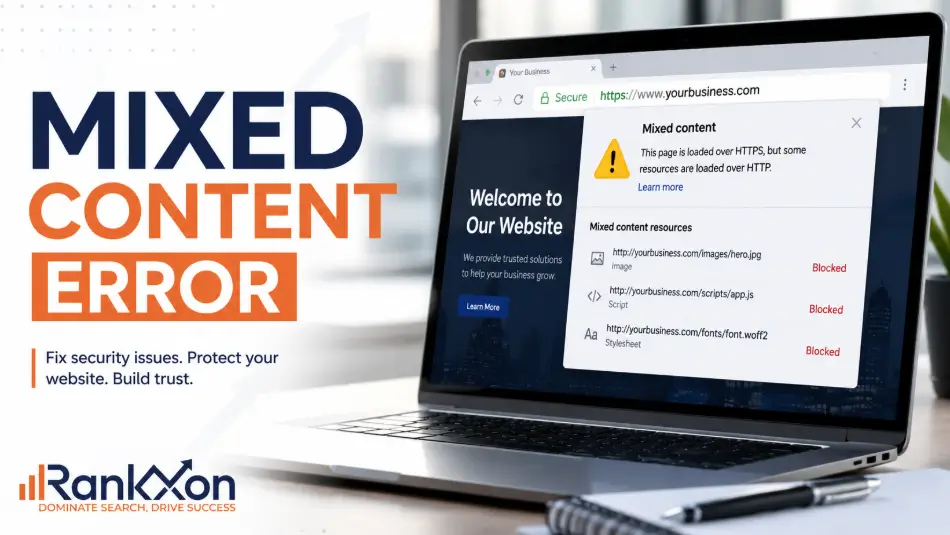
Your SSL certificate can be installed correctly and your website can still show a security warning.
That is the part most website owners do not understand.
The problem is not always the SSL. The real problem is often hidden inside the page. Your main page may load through HTTPS, but some files inside that page may still load through HTTP. That can include images, CSS files, JavaScript, fonts, videos, forms, iframes, tracking scripts, or old links left behind after a website migration.
That is what creates a mixed content error.
And yes, it matters. A mixed content warning can make your website look unsafe, break design elements, block scripts, hurt user trust, and create technical SEO problems if important page resources fail to load properly.
The good news is simple. Once you find the exact HTTP file causing the issue, the fix becomes much easier.
What Is a Mixed Content Error?
A mixed content error happens when a secure HTTPS page loads one or more insecure resources through HTTP.
In simple words, the page itself is secure, but some files inside the page are not.
For example, your website URL may open with HTTPS, but one image, script, font, or stylesheet may still come from an old HTTP link. Browsers see that as a risk because insecure resources can be changed or intercepted before they reach the user.
This is why the browser may remove the secure padlock, show a warning, block the file, or display a message like blocked mixed content.
As explained above, SSL alone does not clean every old URL inside your website. That is why the next section matters.
Why Your HTTPS Site Still Shows Not Secure
If your website still shows Not Secure after SSL installation, do not panic. It usually means one of these things is happening.
- Your SSL certificate is active, but some internal files still use HTTP.
- Your theme, plugin, page builder, or database still contains old HTTP links.
- A third party script is being loaded from an insecure source.
- Your CDN is serving the page securely, but some assets still use insecure URLs. Cache, CDN, and blocked files can also create load speed issues, especially when key scripts or styles fail to load.
- Your browser or website cache is still showing old files.
This is the exact reason many people install SSL, refresh the website, and still see a warning. The certificate secures the connection, but the page still has insecure pieces inside it.
Now we need to look at what usually causes those insecure pieces.
What Causes Mixed Content Errors?
Mixed content usually comes from old URLs, hardcoded assets, poor migration work, or external files that do not support HTTPS.
Here is the practical breakdown.
| Resource Type | Common Cause | Risk Level | What To Check |
| Images | Old media URLs after HTTPS migration | Medium | Media library, page content, builder blocks |
| CSS files | Theme or plugin loading old stylesheet links | High | Theme files, cache, page builder settings |
| JavaScript | Old script links or third party tools | High | Header scripts, tracking tools, plugins |
| Fonts | Font files loaded through HTTP | Medium | Theme settings, font plugin, custom CSS |
| Iframes | Embedded maps, videos, forms, or widgets | High | Embed code, form tools, booking tools |
| API requests | Forms or apps sending data to HTTP endpoint | Critical | Form plugin, custom app, checkout flow |
| CDN assets | CDN serving old HTTP paths | High | CDN settings, cache rules, origin URLs |
The most dangerous ones are CSS, JavaScript, iframes, forms, and API requests. If those break, your page can lose layout, tracking, forms, cart functions, or important conversion elements.
Images can also cause warnings, but blocked scripts and stylesheets are usually more serious.
Active vs Passive Mixed Content
Not every mixed content issue behaves the same way.
Some resources may be upgraded by the browser. Others may be blocked. MDN explains this as upgradable content and blockable content. Images, audio, and video may often be upgraded. Scripts, stylesheets, iframes, and other sensitive resources are more likely to be blocked. MDN explains how browsers treat blocked resources, which is why scripts, stylesheets, and iframes need extra attention.
This matters because two pages can have mixed content but show different behavior.
One page may still look normal because only an image has an insecure URL. Another page may look broken because the CSS file or JavaScript file was blocked.
So do not just ask, Do I have mixed content? Ask, Which file is insecure, and does that file affect page function?
That is where real troubleshooting starts.
How to Check Mixed Content Errors in Chrome
The fastest way to find mixed content is through your browser.
- Open the affected page in Chrome.
- Right click on the page and choose Inspect.
- Go to the Console tab.
- Refresh the page.
- Look for mixed content warnings.
- Copy the HTTP resource URL shown in the warning.
The warning usually tells you the exact HTTP resource causing the issue. It may show an insecure image, stylesheet, script, font, iframe, or request.
Once you find the URL, do not change random settings. First ask where that resource is coming from. Is it from your own website, a plugin, a theme, a page builder, a CDN, or a third party tool?
This matters because the correct fix depends on the source.
How to Fix Mixed Content Errors
The right fix is not always install a plugin. That advice is weak.
The real fix is to update the insecure resource at its source. For larger sites, this type of technical cleanup should be handled page by page, not guessed through plugins.
Start with the file shown in the browser console. If the file belongs to your own website, update it from HTTP to HTTPS or use a clean relative path if it is an internal asset.
If the file comes from a third party tool, check whether that tool supports HTTPS. If it does, update the link. If it does not, remove it or replace it with a safer option.
If the issue comes from CSS or JavaScript, check your theme, plugin, custom code area, or page builder settings.
If the issue comes from your database, especially on WordPress, use a safe database replacement method instead of editing one page at a time.
After the fix, clear every cache. That includes browser cache, website cache, plugin cache, CDN cache, and server cache.
Then test again in a private browser window.
How to Fix Mixed Content Errors in WordPress
WordPress is one of the most common places where mixed content shows up. That is because old URLs often live inside the database, media library, page builder, theme files, plugin settings, and custom fields.
Start with the basics.
- Check that the WordPress address and site address use HTTPS.
- Review media files uploaded before the SSL migration.
- Check page builder content in Elementor, Divi, WPBakery, or similar tools.
- Check theme settings, header scripts, footer scripts, tracking codes, popup tools, form tools, and custom CSS.
- Use a safe database replacement tool when old HTTP URLs exist across many pages.
- Clear cache and test key pages again.
Tools like Better Search Replace are often used to replace old HTTP URLs with HTTPS inside WordPress databases. Plugins like SSL Insecure Content Fixer or Really Simple SSL can help, but they should not become a lazy replacement for fixing the real source.
Here is the ruthless truth.
A plugin can help, but it should not be your only fix. If your theme, database, CDN, or third party script still contains insecure URLs, a plugin may only hide the problem.
How to Fix Mixed Content Errors in Cloudflare
Cloudflare can help with mixed content, but do not treat it like magic.
Cloudflare has Automatic HTTPS Rewrites, which can rewrite HTTP links to HTTPS when the resource supports HTTPS.
That can reduce mixed content warnings, especially after moving a site to HTTPS.
But there is a limit. Cloudflare also states that forcing HTTPS does not fully resolve mixed content because browsers check included resources before making requests. You still need HTTPS links or relative links on the page.
So use Cloudflare as support, not as a lazy replacement for fixing the website.
- Enable Automatic HTTPS Rewrites.
- Use Always Use HTTPS only where it fits your setup.
- Clear Cloudflare cache.
- Check the page again in Chrome Console.
- Fix remaining insecure URLs inside your website.
- Replace or remove any resource that does not work through HTTPS.
This is safer than relying on one dashboard setting and hoping the warning disappears.
How to Fix Blocked Mixed Content in Chrome
A blocked mixed content warning means the browser stopped an insecure file from loading.
This often happens with risky resource types like scripts, stylesheets, iframes, and requests that affect page behavior.
Do not treat allow mixed content as a real fix. Allowing mixed content in Chrome or Firefox may help you test something for a moment, but it does not fix your website. Your visitors will still face the same warning or blocked resource.
The correct fix is to serve that file through HTTPS or replace it with a secure version.
How to Fix the Requested an Insecure Stylesheet Error
This error usually means the page loaded through HTTPS, but the CSS file still loaded through HTTP.
That is a serious issue because CSS controls how the page looks.
If the browser blocks the stylesheet, your website can look broken. Layouts may collapse. Fonts may disappear. Buttons may lose styling. Mobile design may look messy.
To fix it, find where that stylesheet is being loaded. Check the theme, page builder, cache plugin, CDN settings, custom header code, and old hardcoded URLs inside the database.
After updating the source, clear cache and test again. If the error disappears, check the page on mobile too.
Should You Allow Mixed Content?
No, not as a real solution.
Allowing mixed content is like ignoring a warning light in your car. The warning disappears from your view, but the problem is still there.
For a website owner, the goal is not to make your own browser stop warning you. The goal is to make the website safe and clean for every visitor.
If users see a security warning, many of them will leave before filling out a form, buying a product, or trusting your brand.
So the answer is simple. Do not allow mixed content as a permanent fix. Find the insecure resource and fix it.
Does Mixed Content Affect SEO?
Mixed content is not just a technical cleanup task. It can affect SEO in indirect but serious ways. Mixed content also weakens HTTPS trust signals, which can affect how users and search engines experience the page.
The biggest risk is user trust. If a browser shows a security warning, users may leave before reading your page or contacting you.
The second risk is broken rendering. If CSS or JavaScript gets blocked, Google and users may see a poor page experience. Broken rendering, poor trust, and weak page experience can all affect broader ranking signals.
The third risk is conversion loss. A broken form, checkout, booking widget, or menu can quietly destroy leads and sales.
The fourth risk is weak crawl quality. If important scripts, styles, or assets fail to load, the page may not be understood or experienced properly.
Do not make fake claims like mixed content always kills rankings. That is not accurate. The better expert answer is this: mixed content can hurt SEO by damaging trust, page experience, rendering, and conversions. If important resources are blocked, the impact becomes more serious.
Mixed Content Error After HTTP to HTTPS Migration
Mixed content often appears after a website moves from HTTP to HTTPS, especially when the site migration skips old asset paths.
This happens because the main site URL changes, but old file paths remain inside the website.
The homepage may load securely, but old image paths, CSS links, script links, internal embeds, tracking codes, and plugin data may still point to HTTP.
This is why HTTPS migration should never stop at SSL installation.
A proper migration should include these checks:
- Update the main website URL.
- Update internal links.
- Update media URLs.
- Update canonical URLs.
- Update sitemap URLs.
- Update database URLs.
- Update CDN settings.
- Update tracking scripts.
- Check redirects.
- Crawl the full site.
- Test key pages in Chrome Console.
If you skip these steps, the site may look secure on the surface but still carry insecure files inside important pages.
Best Tools to Find Mixed Content Errors
You do not need ten tools. You need the right tool for the right job.
| Tool | Best Use | When To Use It |
| Chrome DevTools | Find mixed content on one page | Best for quick checks |
| Screaming Frog | Crawl many pages | Best for full site audits |
| Sitebulb | Visual technical SEO audit | Best for deeper reports |
| WordPress database tool | Replace old HTTP URLs | Best after HTTPS migration |
| Cloudflare | Rewrite supported insecure links | Best when CDN is active |
| Private browser window | Retest after clearing cache | Best for final checking |
Start with Chrome DevTools if only one page has a warning. Use a crawler if the whole site was migrated or if many pages may have old HTTP resources.
Common Mixed Content Fixing Mistakes
Most mixed content fixes fail because people treat symptoms, not sources.
- Thinking SSL installation fixes everything.
- Installing a plugin and never checking the real issue.
- Ignoring third party scripts.
- Forgetting browser, plugin, server, and CDN cache.
- Only testing the homepage.
- Not checking mobile pages.
The fix is only complete when the affected pages are clean, key resources load correctly, and the browser warning no longer appears after cache is cleared.If the issue keeps coming back, expert SEO guidance can help find whether the problem sits in the CMS, CDN, theme, database, or third party scripts.
Mixed Content Error Checklist
- Check the affected page in Chrome Console.
- Copy every HTTP resource shown in the warning.
- Separate internal resources from external resources.
- Replace internal HTTP files with HTTPS or clean relative paths.
- Replace insecure third party tools with secure versions.
- Update WordPress database URLs if needed.
- Check theme, plugin, and page builder settings.
- Check CDN and Cloudflare settings.
- Clear browser, website, server, and CDN cache.
- Retest in a private browser window.
- Crawl the full site if the issue came after migration.
- Check forms, menus, checkout, and tracking after the fix.
If every important page passes this checklist, the fix is real.
Mixed Content Error FAQs
What does mixed content error mean?
A mixed content error means your HTTPS page is loading at least one file through HTTP. The page itself may be secure, but an image, script, stylesheet, font, iframe, or request inside the page is not secure.
Why does my website say Not Secure after installing SSL?
Your SSL may be active, but old HTTP resources may still exist inside the page. These resources can come from images, CSS, JavaScript, plugins, themes, third party tools, or old database links.
How do I find mixed content on my website?
Open the page in Chrome, right click, choose Inspect, open the Console tab, and refresh the page. The browser usually shows the exact insecure HTTP resource causing the warning.
How do I fix mixed content errors in WordPress?
Check your WordPress site URL settings, update old HTTP media links, replace database URLs, review page builder content, check theme files, and clear all caches. Plugins can help, but they should not replace a proper source level fix.
Can Cloudflare fix mixed content errors?
Cloudflare can help with Automatic HTTPS Rewrites when the insecure resource supports HTTPS. But Cloudflare cannot fix every mixed content issue. You still need to correct old HTTP URLs inside your website where possible.
Should I allow mixed content in Chrome?
No. Allowing mixed content is only a temporary browser setting. It does not fix the website for users. The correct fix is to update or replace the insecure resource.
Does mixed content affect SEO?
Mixed content can affect SEO indirectly by hurting trust, page experience, rendering, and conversions. If important CSS, JavaScript, forms, or checkout elements are blocked, the impact can become serious.
What is the fastest way to fix mixed content after HTTPS migration?
Find the insecure resources in Chrome Console, update old HTTP URLs in your CMS or database, fix theme and plugin files, check CDN settings, clear cache, and crawl the site again.
Conclusion
A mixed content error is not just a browser warning. It is a sign that your HTTPS setup is incomplete.
The SSL certificate may be working. The real issue is usually old HTTP files still sitting inside your page.
Fix the source. Do not hide the warning. Do not rely on one plugin. Do not only test the homepage.
Find the insecure resource, update it properly, clear cache, and retest the page. That is how you fix mixed content in a way that protects trust, user experience, conversions, and SEO.
If the warning still appears after cleanup, get help before it hurts trust, leads, or checkout actions.
